小伙伴们好啊,今天和大家一起说说如何在Excel中按颜色来求和以及按颜色来计数。
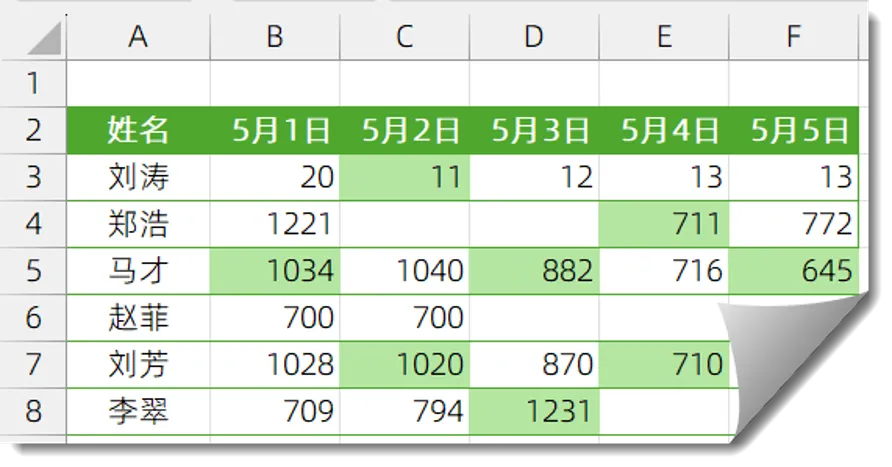
如下图所示,是某个小伙伴的产量记录表格,绿色单元格表示夜班产量,现在要计算每个员工有几个夜班。
Excel没有内置的按颜色求和计数的函数,要实现这样的需求有两种主要方法,一是使用VBA代码来编写自定义函数,二是使用插件来实现。
自定义函数
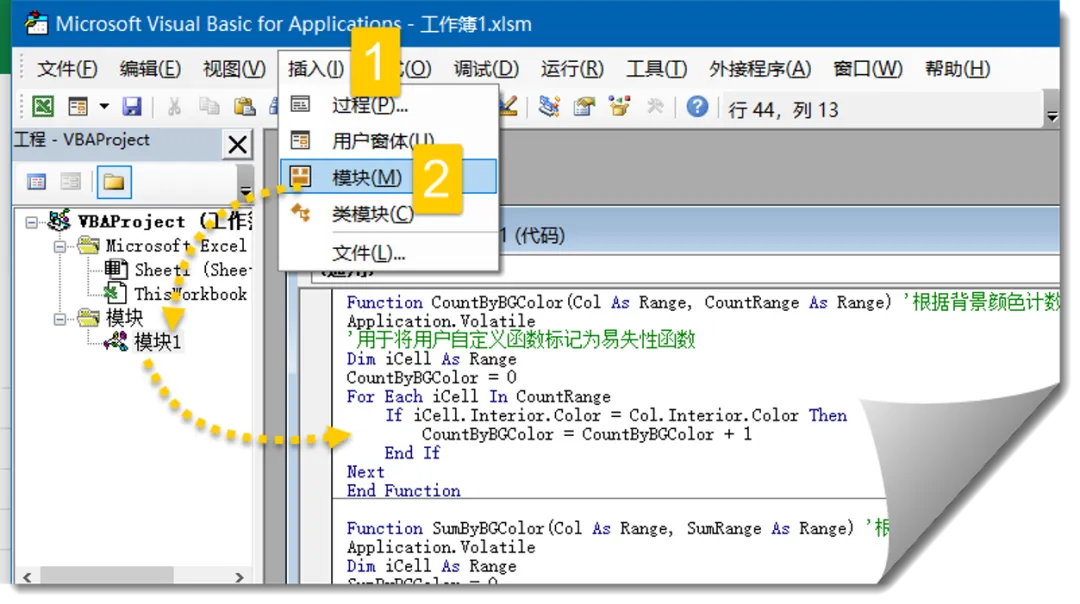
按<Alt+F11>键打开VBA窗口,插入→模块,在模块代码窗口中输入以下代码:
Function CountByBGColor(Col As Range, CountRange As Range) '根据背景颜色计数Application.Volatile'用于将用户自定义函数标记为易失性函数Dim iCell As RangeCountByBGColor = 0For Each iCell In CountRange If iCell.Interior.Color = Col.Interior.Color Then CountByBGColor = CountByBGColor + 1 End IfNextEnd FunctionFunction SumByBGColor(Col As Range, SumRange As Range) '根据背景颜色求和Application.VolatileDim iCell As RangeSumByBGColor = 0For Each iCell In SumRange If iCell.Interior.Color = Col.Interior.Color Then SumByBGColor = SumByBGColor + Application.WorksheetFunction.Sum(iCell) End IfNextEnd FunctionFunction CountByFontColor(Col As Range, CountRange As Range) '根据字体颜色色计数Application.VolatileDim iCell As RangeCountByFontColor = 0For Each iCell In CountRange If iCell.Font.Color = Col.Font.Color Then CountByFontColor = CountByFontColor + 1 End IfNextEnd FunctionFunction SumByFontColor(Col As Range, SumRange As Range) '根据字体颜色求和Application.VolatileDim iCell As RangeSumByFontColor = 0For Each iCell In SumRange If iCell.Font.Color = Col.Font.Color Then SumByFontColor = SumByFontColor + Application.WorksheetFunction.Sum(iCell) End IfNextEnd Function
以上代码自定义了四个函数,分别是:
CountByBGColor:根据背景颜色计数
SumByBGColor:根据背景颜色求和
CountByFontColor:根据字体颜色色计数
SumByFontColor:根据字体颜色求和
四个函数的用法类似,第一参数是给出的带有背景颜色或者字体颜色的示例单元格,第二参数是要进行求和或者计数的单元格。
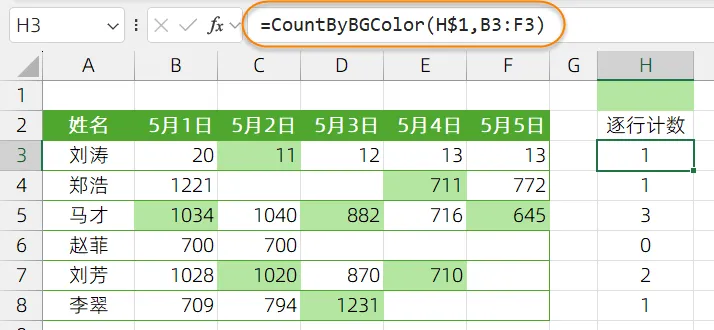
接下来就可以在工作表中输入这些自定义函数了:
=CountByBGColor(H$1,B3:F3)
CountByBGColor,表示根据背景颜色计数。
H1是示例单元格,B3:F3是计数区域。
最后要把文件保存为xlsm格式,否则再次打开文件时,代码就丢失了。
如何在当前电脑里随时调用这些自定义函数呢?
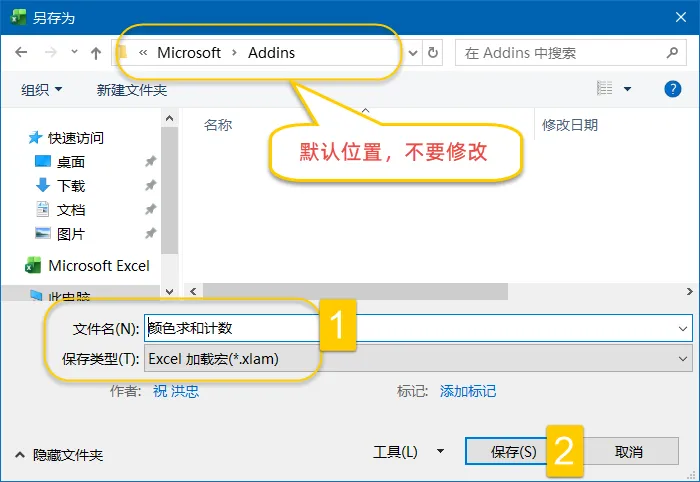
按F12键,在另存为对话框中选择保存类型为“Excel加载项(*.xlam)”,存放位置按默认位置即可,不要修改。
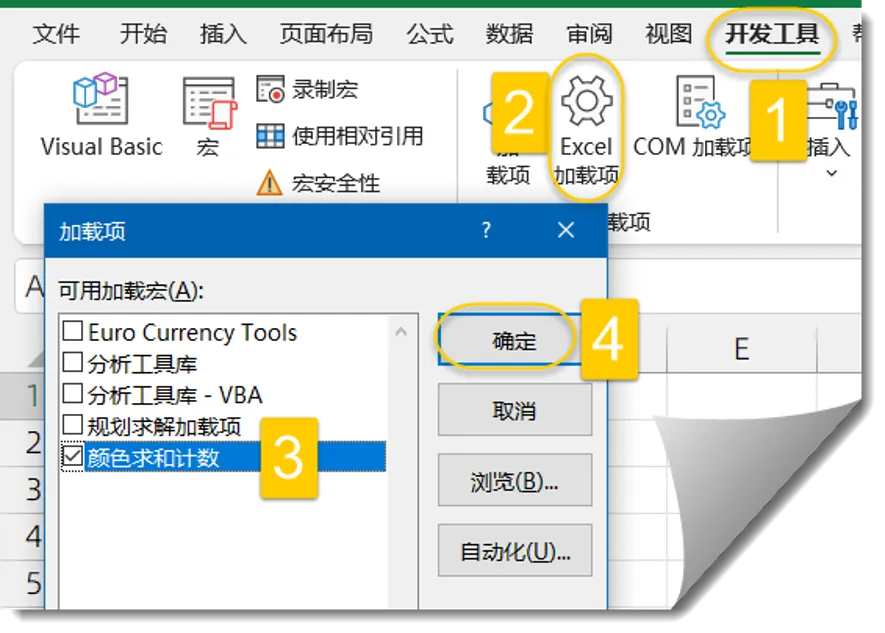
接下来在【开发工具】选项卡下,点击【Excel加载项】按钮,在弹出的对话框中勾选“颜色求和计数”。
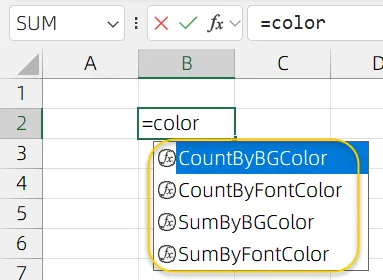
完成以上操作后,打开任意Excel文件,在半角输入状态下输入“=color”,就会在屏幕提示上看到自定义函数候选了。
自定义函数
如果你觉得以上步骤太复杂,不妨试试Office增强插件易用宝,按颜色求和、计数,只需点几下鼠标。
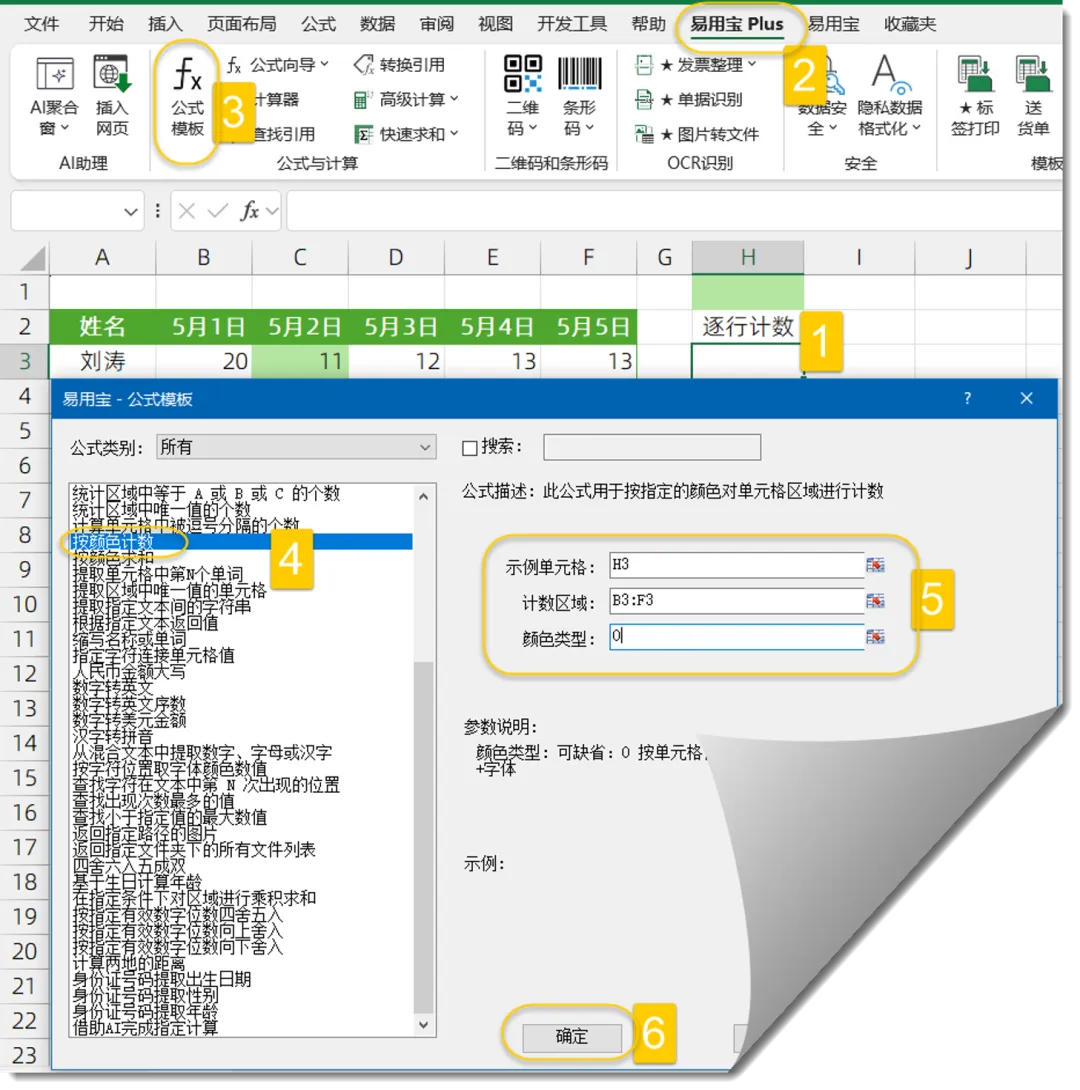
在【易用宝 Plus】选项卡下单击【公式模板】,在对话框中选择公式类别“按颜色计数”,在右侧按提示输入参数,单击【确定】即可。
Office增强插件易用宝,集成了数百个功能,让你的办公效率如虎添翼~~
点击[阅读原文],发现易用宝更多功能。
<本文含广告>

 10个月宝宝每天需要喝多少奶粉?

