Excel VBA 数据可视化:渐变色填充实现 问题引入 在处理包含时间维度的数据表时,如何 快速识别出紧急程度 ?
本文介绍一种纯 VBA 实现的方案:以指定日期为基准,自动为日期列生成 红色渐变填充 ,越接近基准日颜色越浅,越早的日期颜色越深。全程可控、可定制,且易于集成到现有工具中。
核心思路 实现这个需求需要解决三个关键问题:
下面给出完整实现,包含辅助函数和测试用例。
完整代码实现 主程序:应用渐变填充 Option Explicit '===================================================== ' 工作表日期列红色渐变填充 ' 第2行为基准日期 → 最浅红;越早越接近正红 RGB(255,0,0) ' 自动跳过空值、错误值、非日期数据 '===================================================== Sub ApplyDateGradient() Dim ws As Worksheet Dim lastRow As Long, currentRow As Long Dim baseDate As Date, earliestDate As Date Dim targetCell As Range, cellValue As Variant Dim targetCol As Integer, colLetter As String Dim dateSpan As Double, colorRatio As Double ' 初始化工作表 Set ws = ThisWorkbook.Worksheets("总表") ' 动态查找"到期日"所在列(第1行是标题行) targetCol = FindColumnByHeader(ws, 1, "到期日") If targetCol = 0 Then MsgBox "未找到目标列,请检查表头", vbExclamation Exit Sub End If ' 确定数据边界 lastRow = ws.Cells(ws.Rows.Count, targetCol).End(xlUp).Row If lastRow < 3 Then Exit Sub ' 数据不足,无需处理 ' 获取基准日期(第2行) baseDate = ws.Cells(2, targetCol).Value earliestDate = baseDate ' 扫描有效日期,确定最早日期(用于计算渐变范围) For currentRow = 3 To lastRow cellValue = ws.Cells(currentRow, targetCol).Value If IsValidDate(cellValue) Then If CDate(cellValue) < earliestDate Then earliestDate = CDate(cellValue) End If End If Next currentRow ' 计算日期跨度,避免除零 dateSpan = baseDate - earliestDate If dateSpan <= 0 Then dateSpan = 1 ' 获取列字母标识(用于Range操作) colLetter = ColumnNumberToLetter(targetCol) ' 清除历史格式 ws.Range(colLetter & "3:" & colLetter & lastRow).Interior.ColorIndex = xlNone ' 逐行应用颜色 For currentRow = 3 To lastRow Set targetCell = ws.Cells(currentRow, targetCol) cellValue = targetCell.Value If IsValidDate(cellValue) Then Dim currentDate As Date currentDate = CDate(cellValue) ' 只处理不晚于基准日的日期 If currentDate <= baseDate Then ' 计算颜色比例:0=基准日(浅红), 1=最早日期(正红) colorRatio = (baseDate - currentDate) / dateSpan targetCell.Interior.Color = CalculateRedGradient(colorRatio) End If End If Next currentRow ' 完成提示(如有自定义MsgBox类可替换) MsgBox "日期渐变填充完成!", vbInformation, "处理结果" End Sub 辅助函数模块 '===================================================== ' 根据表头文本查找列号(不区分大小写) ' 参数:ws-工作表, headerRow-标题行号, headerText-查找文本 ' 返回:列号(未找到返回0) '===================================================== Private Function FindColumnByHeader(ws As Worksheet, _ headerRow As Long, _ headerText As String) As Integer Dim col As Integer Dim foundCell As Range Set foundCell = ws.Rows(headerRow).Find(What:=headerText, _ LookIn:=xlValues, _ LookAt:=xlWhole, _ MatchCase:=False) If Not foundCell Is Nothing Then FindColumnByHeader = foundCell.Column Else FindColumnByHeader = 0 End If End Function '===================================================== ' 列号转字母(1→A, 27→AA) '===================================================== Private Function ColumnNumberToLetter(colNum As Integer) As String Dim result As String Dim remainder As Integer Do While colNum > 0 remainder = (colNum - 1) Mod 26 result = Chr(65 + remainder) & result colNum = (colNum - 1) \ 26 Loop ColumnNumberToLetter = result End Function '===================================================== ' 验证是否为有效日期(排除错误值、空值、非日期) '===================================================== Private Function IsValidDate(val As Variant) As Boolean On Error Resume Next IsValidDate = False If IsEmpty(val) Then Exit Function If IsError(val) Then Exit Function If Not IsDate(val) Then Exit Function ' 额外检查:排除明显错误的日期(如0或负数转换的日期) Dim testDate As Date testDate = CDate(val) If Year(testDate) < 1900 Or Year(testDate) > 9999 Then Exit Function IsValidDate = True On Error GoTo 0 End Function '===================================================== ' 计算红色渐变值 ' 参数:ratio ∈ [0,1] — 0返回浅红(255,220,220), 1返回正红(255,0,0) '===================================================== Private Function CalculateRedGradient(ratio As Double) As Long ' 限制ratio在有效范围内 If ratio < 0 Then ratio = 0 If ratio > 1 Then ratio = 1 Dim red As Long, green As Long, blue As Long red = 255 green = 220 - Int(ratio * 220) ' 220 → 0 blue = 220 - Int(ratio * 220) ' 220 → 0 CalculateRedGradient = RGB(red, green, blue) End Function 关键设计解析 1. 动态列定位的鲁棒性 硬编码列号(如 Columns("Y") )在表格结构调整时极易出错。通过 FindColumnByHeader 实现 按名称查找 ,即使插入或删除列也能正确定位。
实际项目中,建议将表头文本提取为常量或配置项,便于维护。
2. 日期有效性多层校验 IsValidDate 函数不仅检查 IsDate ,还排除了:
超出合理年份的日期(防止Excel将数字0转换为 1900/1/0 ) 3. 颜色插值的数学基础 渐变算法采用 线性插值 (Linear Interpolation):
其中 , 代表 RGB 通道值。本例中固定 Red=255,仅对 Green 和 Blue 通道进行插值,从 220 递减至 0。
如需扩展为其他色系(如绿-黄-红风险等级),可修改 CalculateRedGradient 为通用函数,接收起始色和结束色参数。
进阶扩展:从单一功能到通用框架 扩展1:支持多列批量处理 Sub BatchApplyGradient() Dim targetColumns As Variant Dim i As Integer ' 定义需要处理的列标题数组 targetColumns = Array("到期日", "开始日期", "审核日期") For i = LBound(targetColumns) To UBound(targetColumns) ' 复用主逻辑,传入不同列参数 ApplyGradientToColumn CStr(targetColumns(i)) Next i End Sub 扩展2:集成到工作簿事件 将渐变更新绑定到 Worksheet_Change 事件,实现 实时刷新 :
Private Sub Worksheet_Change(ByVal Target As Range) Dim watchRange As Range ' 仅监控日期列变化,避免全表刷新影响性能 Set watchRange = Me.Range("Y:Y") If Not Intersect(Target, watchRange) Is Nothing Then Application.EnableEvents = False ApplyDateGradient ' 调用主程序 Application.EnableEvents = True End If End Sub 注意:事件驱动方式在大数据量时需谨慎,建议改用按钮触发或定时刷新。
扩展3:导出为可复用类模块 对于复杂项目,建议将功能封装为类(Class Module):
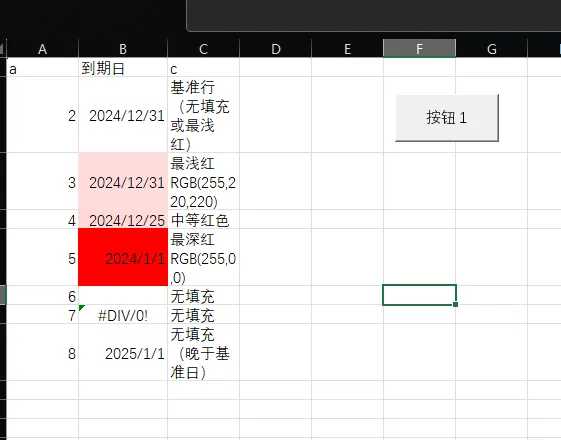
' 类名:DateGradientFormatter ' 属性:Worksheet, HeaderText, BaseDateRow, ColorStart, ColorEnd ' 方法:ApplyFormatting, ClearFormatting ' 使用示例: Dim fmt As New DateGradientFormatter With fmt Set .TargetSheet = ThisWorkbook.Worksheets("总表") .HeaderText = "到期日" .ApplyFormatting End With 测试用例 创建如下测试数据验证代码:
验证要点 :
性能优化建议 关闭屏幕刷新 Application.ScreenUpdating = False
延伸 可以找一些专业配色方案,改进渐变色函数,避免由于个人原因或者显示器问题导致渐变出现视觉偏差。 结语 通过 VBA 实现自定义渐变填充,突破了条件格式的静态限制,为复杂业务场景提供了灵活的视觉呈现方案。关键在于 解耦定位逻辑、校验逻辑与渲染逻辑 ,使代码具备复用性和可维护性。
不用复制本页面代码 ,因为代码较多,公众号的排版可能导致细微的语法错误或粘贴后的代码中带特殊符号, 百度网盘上传有完整可运行的文件 。
通过网盘分享的文件 :渐变色 红.xlsm
链接 : https://pan.baidu.com/s/1vayIe3d-DvxIFE-NmfjxKw?pwd=easc
如果这篇文章对你有帮助,欢迎关注我的公众号 "VBA爱好者" ,有问题也欢迎在评论区留言交流。