【Excel | WPS】:3种批量制作工资条方法
- 2026-09-17 13:06:28
【Excel | WPS】:3种批量制作工资条方法
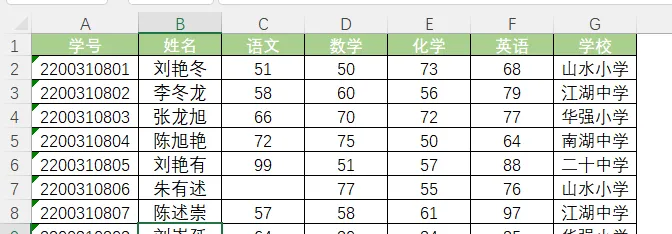
这种有一行两行三行,甚至多行标题的工资表或成绩表,如何快速做成这样的工资条样式? 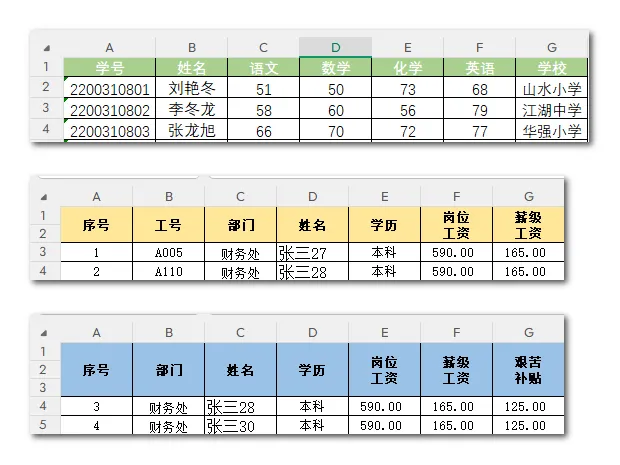
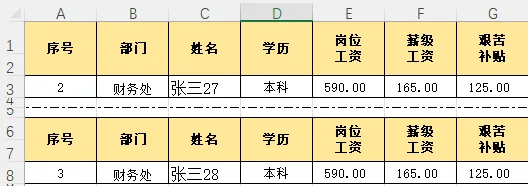
你不会还一个个复制粘贴吧!今天我们一条视频讲三种方法,EXCEL和WPS都可以用。 建议点赞收藏一下教程,避免工作需要时找不到了。 
第一个方法:公式法 先把表格标题复制到一个空白区域,用VLOOKUP根据工号返回后面各项数据. 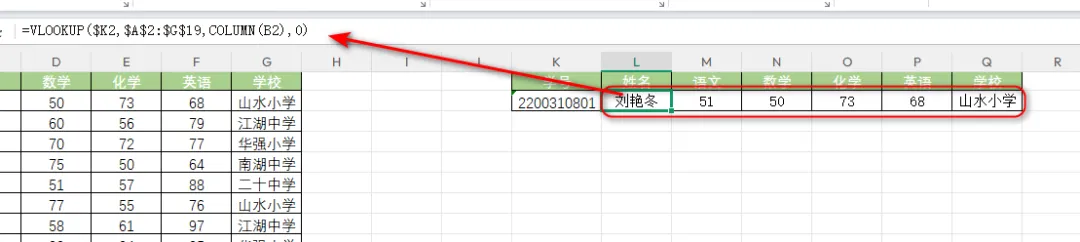
做好一个员工,选中标题行和数据行,如果工资条间需要留一行间隔,就多选一行,下拉向下填充就行了。 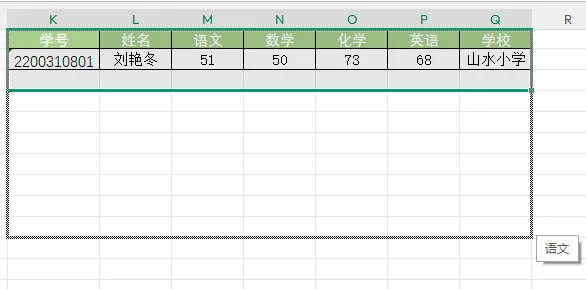
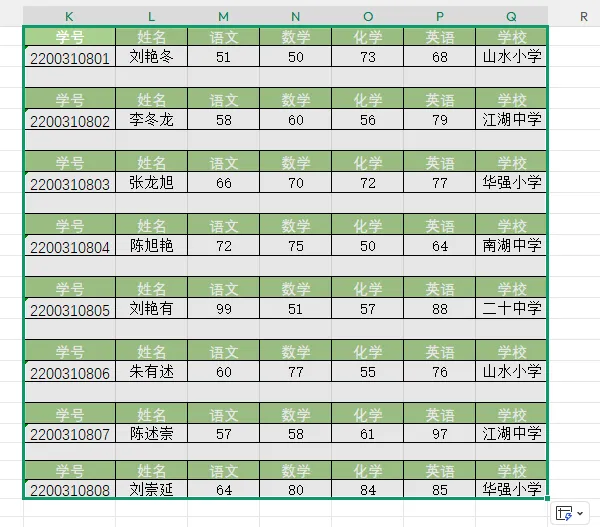
这里有一个地方要注意一下,这里的工号需要是连续的工号,如果你的工号不是连续的编号,可以在前面插入一列序号,我们根据序号返回后面的数据,也是一样的。 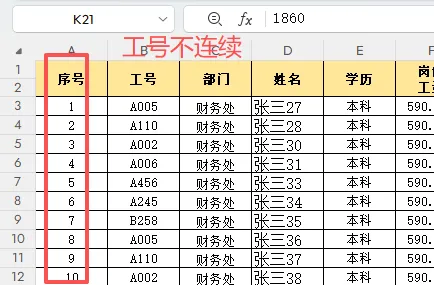
第二个方法:WPS财务工具箱 如果你用的是WPS就更方便了,WPS中财务工具箱就要这个功能。 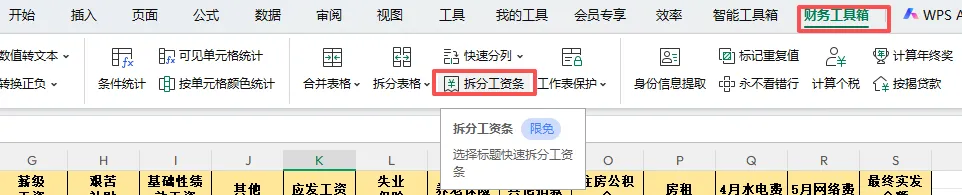
但是这个功能,可能需要充会员才能用。 先选中数据标题行,点一下财务工具箱中的拆分工资条,稍等一下就生成了。 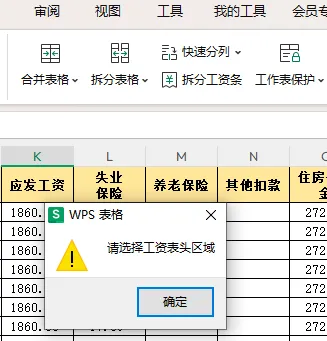
第三个方法:VBA 如果你用的是EXCEL,没有WPS,或者WPS没有会员,也想批量处理,那可以用VBA开发处理。 在EXCEL中按ALT+F11,打开VBA代码窗口,在左边工程栏中右键,插入一个模块。 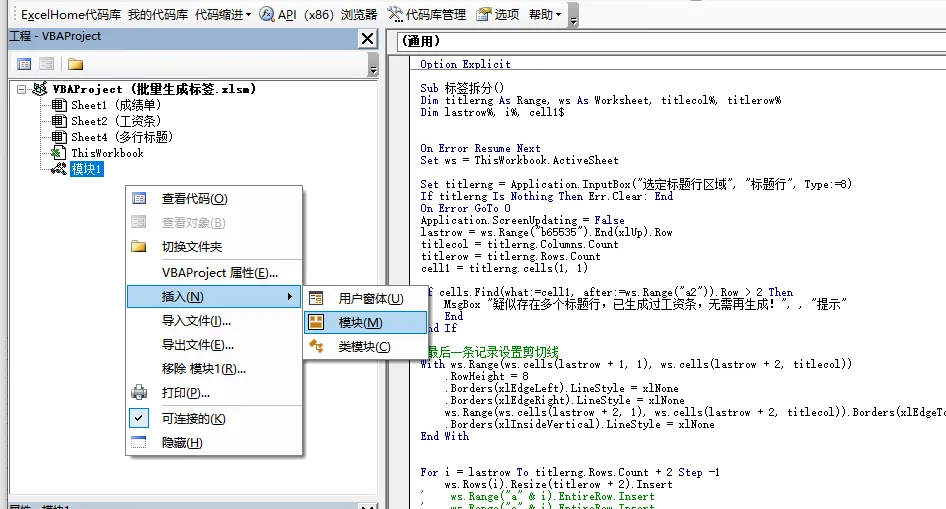
把这个代码复制粘贴过来。(代码分享在文章最后) 再按一下ALT+F11回到表格视图中,按ALT+F8调出宏菜单,运行一下这个程序就行了。 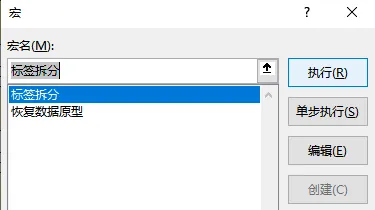
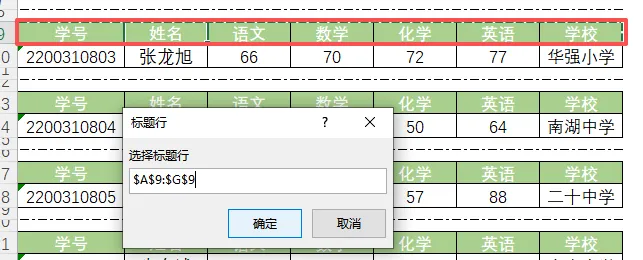
运行时也需要选择一下标题行,稍等一下就批量完成了 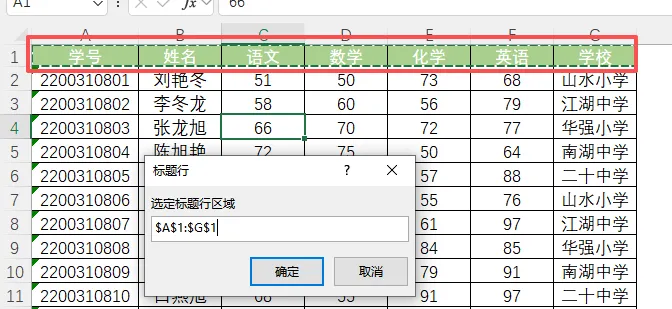
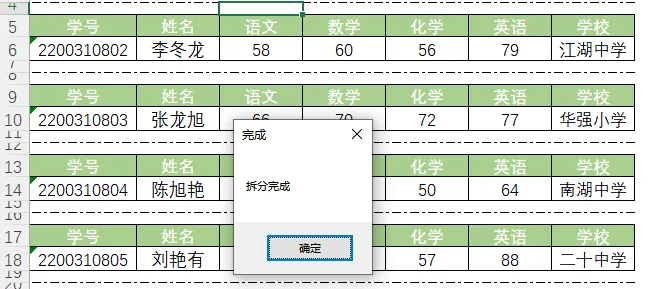
这个样式排版比刚才那个更美观,每个工资条中间还有一条裁剪线。 如果拆分完想恢复表格,点一下恢复数据表的程序,再选择一下标题行,也可以一键恢复。 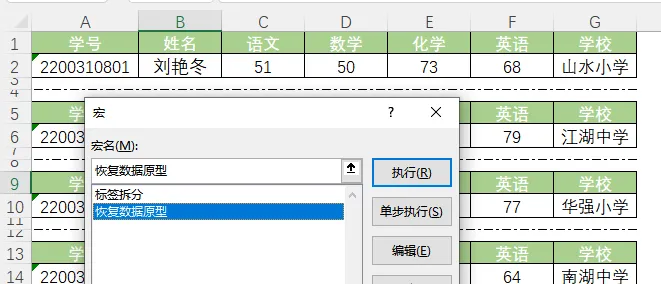
三种方法你都学会了吗? VBA代码:

=VLOOKUP($K2,$A$2:$G$19,COLUMN(B2),0)我们只需要做一个员工就行了。公式写完再设计一下格式。
Sub 标签拆分()Dim titlerng As Range, ws As Worksheet, titlecol%, titlerow%Dim lastrow%, i%, cell1$On Error Resume NextSet ws = ThisWorkbook.ActiveSheetSet titlerng = Application.InputBox("选定标题行区域", "标题行", Type:=8)If titlerng Is Nothing Then Err.Clear: EndOn Error GoTo 0Application.ScreenUpdating = Falselastrow = ws.Range("b65535").End(xlUp).Rowtitlecol = titlerng.Columns.Counttitlerow = titlerng.Rows.Countcell1 = titlerng.cells(1, 1)If cells.Find(what:=cell1, after:=ws.Range("a2")).Row > 2 ThenMsgBox "疑似存在多个标题行,已生成过工资条,无需再生成!", , "提示"EndEnd If'最后一条记录设置剪切线With ws.Range(ws.cells(lastrow + 1, 1), ws.cells(lastrow + 2, titlecol)).RowHeight = 8.Borders(xlEdgeLeft).LineStyle = xlNone.Borders(xlEdgeRight).LineStyle = xlNonews.Range(ws.cells(lastrow + 2, 1), ws.cells(lastrow + 2, titlecol)).Borders(xlEdgeTop).LineStyle = xlDashDot.Borders(xlInsideVertical).LineStyle = xlNoneEnd WithFor i = lastrow To titlerng.Rows.Count + 2 Step -1ws.Rows(i).Resize(titlerow + 2).Inserttitlerng.Copy ws.Range("a" & i + 2)'设置剪切线With ws.Range(ws.cells(i, 1), ws.cells(i + 1, titlecol)).RowHeight = 8.Borders(xlEdgeLeft).LineStyle = xlNone.Borders(xlEdgeRight).LineStyle = xlNonews.Range(ws.cells(i + 1, 1), ws.cells(i + 1, titlecol)).Borders(xlEdgeTop).LineStyle = xlDashDot.Borders(xlInsideVertical).LineStyle = xlNoneEnd WithNextApplication.ScreenUpdating = TrueMsgBox "拆分完成", , "完成"End SubSub 恢复数据原型()Dim header As Range, lastrow%, i%Dim ws As Worksheet, headerrow%Dim cell1$, cell2$On Error Resume NextSet ws = ThisWorkbook.ActiveSheetSet header = Application.InputBox("选择标题行", "标题行", Type:=8)Application.ScreenUpdating = FalseIf header Is Nothing Then Err.Clear: EndOn Error GoTo 0headerrow = header.Rows.Countlastrow = ws.Range("b56654").End(xlUp).Rowcell1 = header.cells(1, 1)cell2 = header.cells(1, 2)For i = headerrow + 1 To lastrowIf ws.Range("a" & i) = cell1 And ws.Range("b" & i) = cell2 Thenws.Range("a" & i).EntireRow.DeleteEnd IfNextws.Range("a" & headerrow + 1 & ":a" & lastrow).SpecialCells(Type:=xlCellTypeBlanks).EntireRow.DeleteApplication.ScreenUpdating = TrueEnd Sub
如果你想“从入门到精通”学习EXCEL,老师推荐以下两个教程:
关注我,学习更多高效办公技巧!
#办公技能#办公软件#职场技能#职场办公#wps#VBA#EXCEL函数
关注老师,点底部头像到主页,点右上角“…”,设为星标,才不错容易过精彩教程哦。
往期干货文章学习推荐:
Office2021专业版安装教程及安装包【已激活免费下载】
WPS打开宏文件提示“无权限”及宏“被禁止”怎么办?【插件限时领取】
【工具限时领取】用OUTLOOK轻松实现不同人不同内容的邮件群发
你还要手工加班算考勤?!1秒完成百人考勤,HR熬夜加班终结者
分享高效办公技巧及免费自动化模版,避免以后需要找不到,请您持续关注哦
本文来自网友投稿或网络内容,如有侵犯您的权益请联系我们删除,联系邮箱:wyl860211@qq.com 。

