Excel VBA:一键批量创建嵌套文件夹
- 2026-09-22 17:30:39
Excel VBA:一键批量创建嵌套文件夹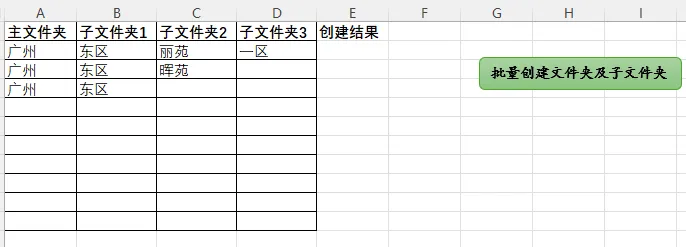

📥 获取方式 关注后回复“批量创建嵌套文件夹”获取下载链接
点击Excel每日一学,关注星标★不迷路
还在手动新建文件夹?用这段VBA代码,让Excel帮你自动生成多层嵌套文件夹!
✨ 功能亮点:
📁 选择表格区域,自动识别文件夹层级结构 📂 选取根目录,一键生成完整文件夹路径 ✅ 实时反馈创建状态(成功/已存在/失败) ⚡ 递归创建,支持任意深度的嵌套结构
💡 使用场景: 项目文档归档、学期课程整理、客户资料管理……只要你有层级分类需求,它都能轻松搞定!
代码:
Option ExplicitSub CreateNestedFolders()Dim selectedRange As RangeDim rootPath As StringDim fullPath As StringDim r As RangeDim cell As RangeDim fd As FileDialogDim foldersCreated As LongDim foldersExisted As LongDim summaryMsg As StringDim statusText As StringDim statusCell As Range' 1. 让用户选择包含文件夹结构的工作表区域On Error Resume NextSet selectedRange = Application.InputBox( _Prompt:="请选择包含文件夹结构的单元格区域:", _Title:="选择单元格区域", _Type:=8)On Error GoTo 0If selectedRange Is Nothing ThenMsgBox "没有选择单元格区域. 操作取消.", vbExclamationExit SubEnd If' 2. 让用户选择创建文件夹的根目录Set fd = Application.FileDialog(msoFileDialogFolderPicker)fd.Title = "选择想要创建文件夹所在的位置"If fd.Show = -1 ThenrootPath = fd.SelectedItems(1)ElseMsgBox "没有选择目录位置. 操作取消.", vbExclamationExit SubEnd If' 确保根目录以反斜杠结尾If Right(rootPath, 1) <> "\" Then rootPath = rootPath & "\"' 优化:关闭屏幕刷新,提高运行速度Application.ScreenUpdating = FalseApplication.Calculation = xlCalculationManual' 3. 遍历选中的每一行数据foldersCreated = 0foldersExisted = 0For Each r In selectedRange.RowsfullPath = rootPathDim hasContent As BooleanhasContent = False' 拼接完整路径:根目录 + 每个非空单元格内容For Each cell In r.CellsIf Trim(cell.Value) <> "" ThenfullPath = fullPath & Trim(cell.Value) & "\"hasContent = TrueEnd IfNext cell' 删除末尾多余的反斜杠If Right(fullPath, 1) = "\" ThenfullPath = Left(fullPath, Len(fullPath) - 1)End If' 设置状态单元格位置:当前行的右侧第一列Set statusCell = r.Offset(0, r.Columns.Count).Cells(1, 1)' 4. 检查路径有效性并创建,同时记录状态If Not hasContent ThenstatusText = "无内容"ElseIf fullPath = rootPath ThenstatusText = "路径为空"ElseIf Dir(fullPath, vbDirectory) <> "" Then' 文件夹已存在foldersExisted = foldersExisted + 1statusText = "已存在"Else' 尝试创建If CreatePathRecursive(fullPath) ThenfoldersCreated = foldersCreated + 1statusText = "创建成功"ElsestatusText = "失败 (非法字符)"End IfEnd IfEnd If' 将状态写入单元格右侧statusCell.Value = statusText' 可选:根据状态给文字上色 (如果需要上色,取消下面几行的注释)With statusCellSelect Case statusTextCase "创建成功": .Font.Color = vbGreenCase "已存在": .Font.Color = vbBlueCase "失败 (非法字符)": .Font.Color = vbRedEnd SelectEnd WithNext r' 恢复系统设置Application.ScreenUpdating = TrueApplication.Calculation = xlCalculationAutomatic' 自动调整列宽以适应状态文字selectedRange.Offset(0, selectedRange.Columns.Count).Columns.AutoFit' 5. 显示操作结果摘要summaryMsg = "操作完成!" & vbCrLf & vbCrLfsummaryMsg = summaryMsg & foldersCreated & " 个文件夹成功创建." & vbCrLfIf foldersExisted > 0 ThensummaryMsg = summaryMsg & foldersExisted & " 个文件夹已存在." & vbCrLfEnd IfsummaryMsg = summaryMsg & "结果已显示在选中区域的右侧列。" & vbCrLf & vbCrLf & "位置: " & rootPathMsgBox summaryMsg, vbInformationEnd Sub' 递归创建文件夹路径的函数' 返回 True 表示成功或已存在,False 表示出错Function CreatePathRecursive(ByVal fullPath As String) As BooleanDim parts() As StringDim currentPath As StringDim i As LongOn Error GoTo ErrorHandler' 按反斜杠拆分路径parts = Split(fullPath, "\")' 从驱动器盘符开始构建 (例如 "C:")currentPath = parts(0)' 遍历路径的每一部分并逐级创建文件夹For i = 1 To UBound(parts)If parts(i) <> "" ThencurrentPath = currentPath & "\" & parts(i)' 如果文件夹不存在,则创建If Dir(currentPath, vbDirectory) = "" ThenMkDir currentPathEnd IfEnd IfNext iCreatePathRecursive = TrueExit FunctionErrorHandler:' 遇到错误(如文件名包含 \ / : * ? " < > | 等非法字符)CreatePathRecursive = FalseEnd Function
📝 使用方法:
在Excel中按Alt+F11打开VBA编辑器 插入模块,粘贴上方代码 运行宏,按提示操作即可
代码已包含完整错误处理和状态反馈,安全可靠。快收藏分享给需要的小伙伴吧!
由于公众号平台更改了推送规则,为确保您能及时收到Excel每日一学的原创分享,请记得关注公众号并设为星标⭐,同时欢迎转发 、点赞
、点赞 或在看
或在看 。也欢迎扫描下方二维码加我个人微信相互学习交流
本文来自网友投稿或网络内容,如有侵犯您的权益请联系我们删除,联系邮箱:wyl860211@qq.com 。

