大家好,我是每天跟Excel打交道的办公族。最近一忙起来就忘了休息,经常在电脑前一坐就是三四个小时,眼睛酸、脖子疼。手机闹钟太容易忽略,番茄钟软件又得单独安装……于是我用Excel VBA写了个超简单的“定时提醒小工具”,可以自定义提醒时间和内容,到点自动弹窗!今天就把这个保姆级教程分享给你,按下面三个步骤,两分钟就能搞定~📌 功能效果
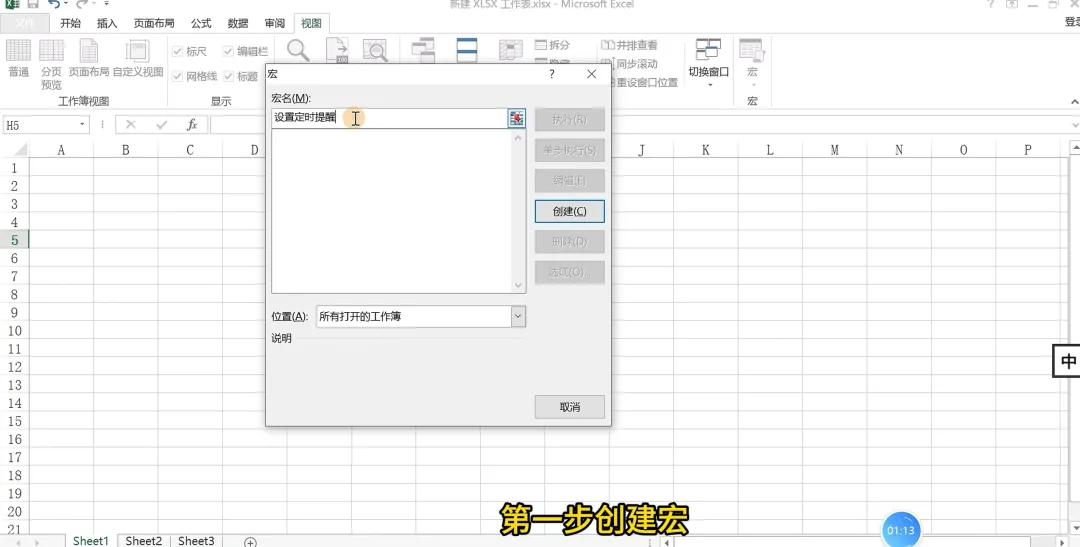
1. 创建宏
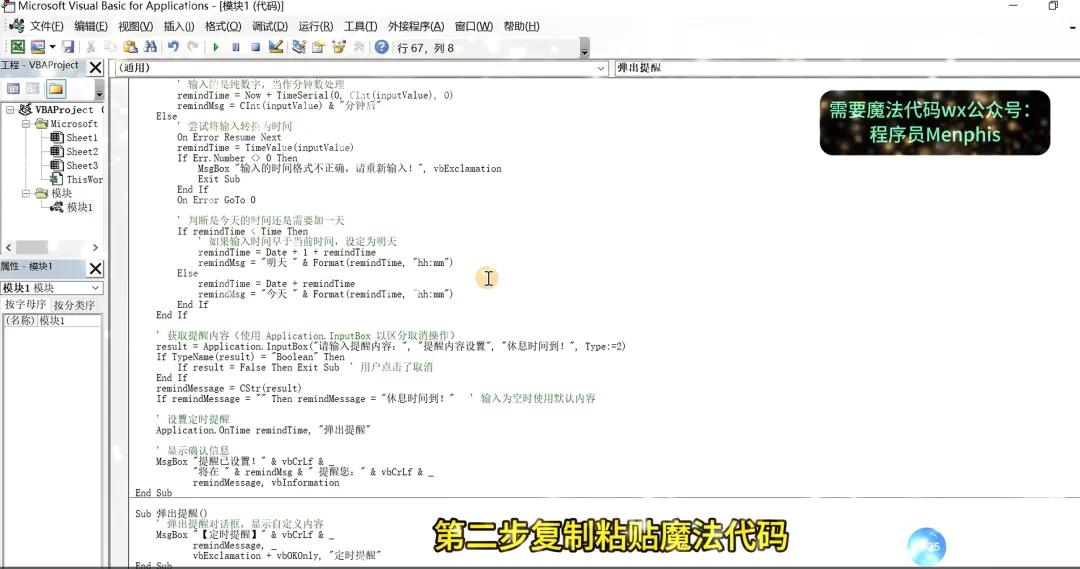
2. 复制粘贴魔法代码
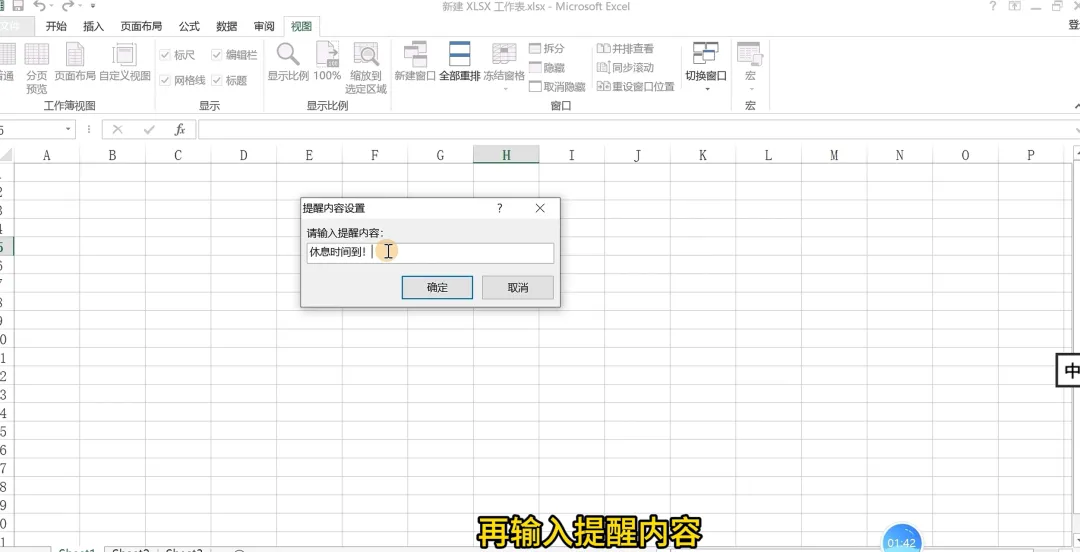
Private remindMessage As StringSub 设置定时提醒() Dim inputValue As String Dim remindTime As Date Dim remindMsg As String Dim result As Variant ' 获取用户输入时间 inputValue = InputBox("请输入提醒时间:" & vbCrLf & _ "格式1:输入分钟数(如:30)" & vbCrLf & _ "格式2:输入具体时间点(如:16:30)" & vbCrLf & _ "格式3:输入时分秒(如:01:30:00)", _ "定时提醒设置", "30") ' 检查用户是否取消 If inputValue = "" Then Exit Sub ' 处理用户输入 If IsNumeric(inputValue) Then ' 输入的是纯数字,当作分钟数处理 remindTime = Now + TimeSerial(0, CInt(inputValue), 0) remindMsg = CInt(inputValue) & "分钟后" Else ' 尝试将输入转换为时间 On Error Resume Next remindTime = TimeValue(inputValue) If Err.Number <> 0 Then MsgBox "输入的时间格式不正确,请重新输入!", vbExclamation Exit Sub End If On Error GoTo 0 ' 判断是今天的时间还是需要加一天 If remindTime < Time Then ' 如果输入时间早于当前时间,设定为明天 remindTime = Date + 1 + remindTime remindMsg = "明天 " & Format(remindTime, "hh:mm") Else remindTime = Date + remindTime remindMsg = "今天 " & Format(remindTime, "hh:mm") End If End If ' 获取提醒内容(使用 Application.InputBox 以区分取消操作) result = Application.InputBox("请输入提醒内容:", "提醒内容设置", "休息时间到!", Type:=2) If TypeName(result) = "Boolean" Then If result = False Then Exit Sub ' 用户点击了取消 End If remindMessage = CStr(result) If remindMessage = "" Then remindMessage = "休息时间到!" ' 输入为空时使用默认内容 ' 设置定时提醒 Application.OnTime remindTime, "弹出提醒" ' 显示确认信息 MsgBox "提醒已设置!" & vbCrLf & _ "将在 " & remindMsg & " 提醒您:" & vbCrLf & _ remindMessage, vbInformationEnd SubSub 弹出提醒() ' 弹出提醒对话框,显示自定义内容 MsgBox "【定时提醒】" & vbCrLf & _ remindMessage, _ vbExclamation + vbOKOnly, "定时提醒"End Sub
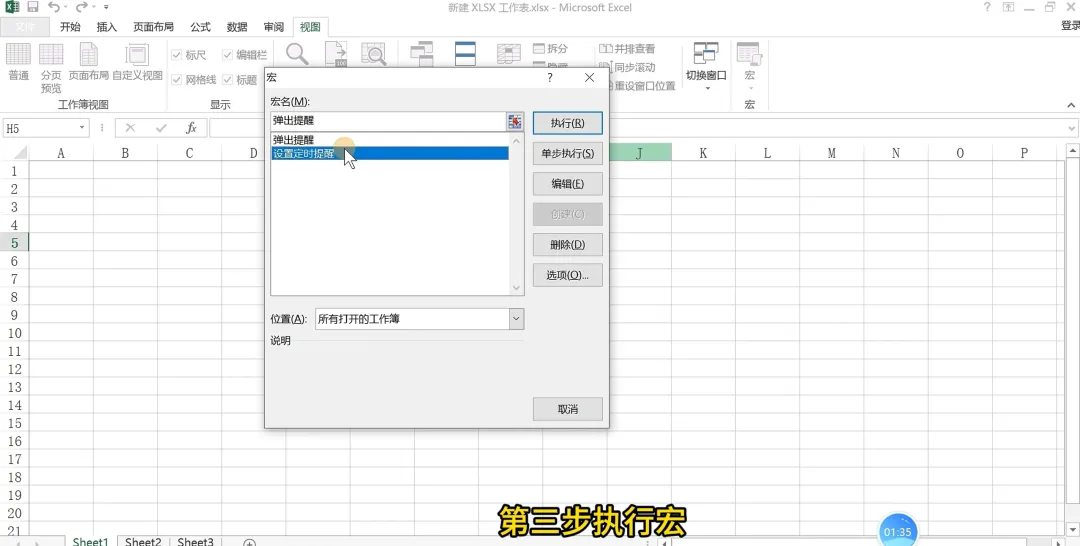
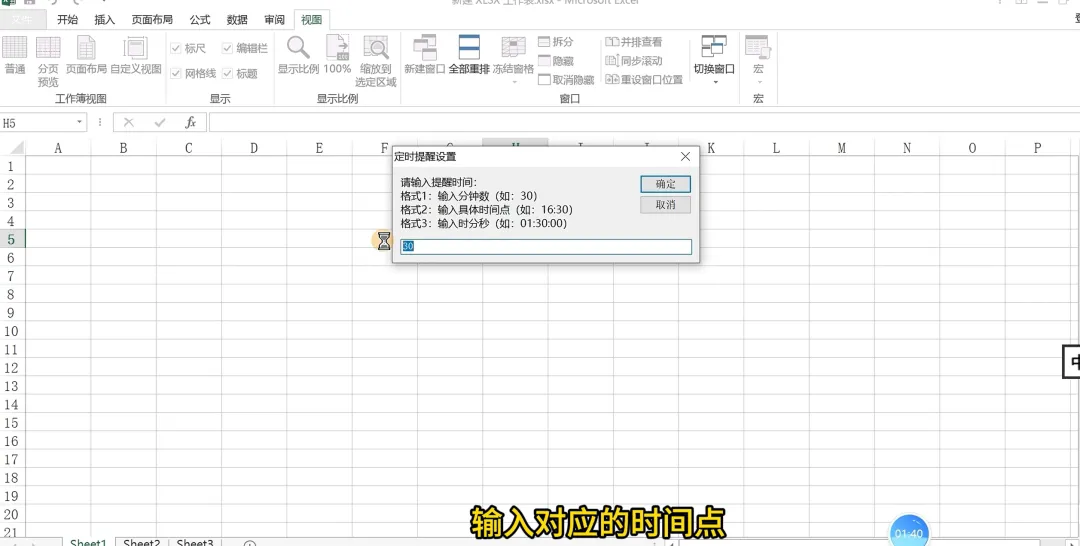
3. 执行宏
到点后,Excel会自动弹出一个对话框,显示你输入的内容,提醒你该休息/做事了!💬 结语
用Excel做这个小工具,不用安装任何额外软件,随时能用。如果你也经常久坐办公,不妨试试这个“贴心秘书”,到点提醒自己站起来活动一下。快打开Excel动手试试吧!
如果觉得有用,欢迎点赞、在看、分享给身边久坐的朋友~

 10个月宝宝每天需要喝多少奶粉?

