总是听到或看到有人问,编程好学吗?如何入门?多久能学会?它能做些什么?怎么写代码呀?...如果你也有类似的问题那就赶快关注我的公众号,本公众号一直在不间断地分享编程案例和实用技巧,无论您想提升自动化办公效率还是编程技能,都能收获满满
在日常办公中,我们常常会遇到这样的场景:
这就像在一堆散落的零件中,寻找恰好能拼成目标形状的那几块
接下来,我们将通过一个具体的案例,详细说明如何通过VBA编程快速解决这一类问题
需求描述
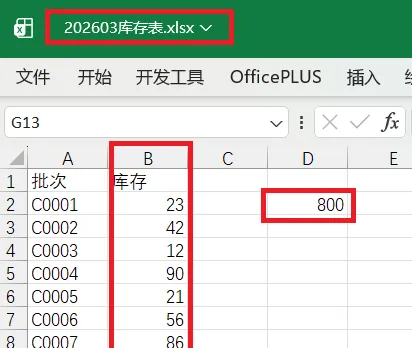
如图所示,库存表中A列显示的是货物批次,B列对应库存数量,而客户要求的发货数量则记录在D2单元格中
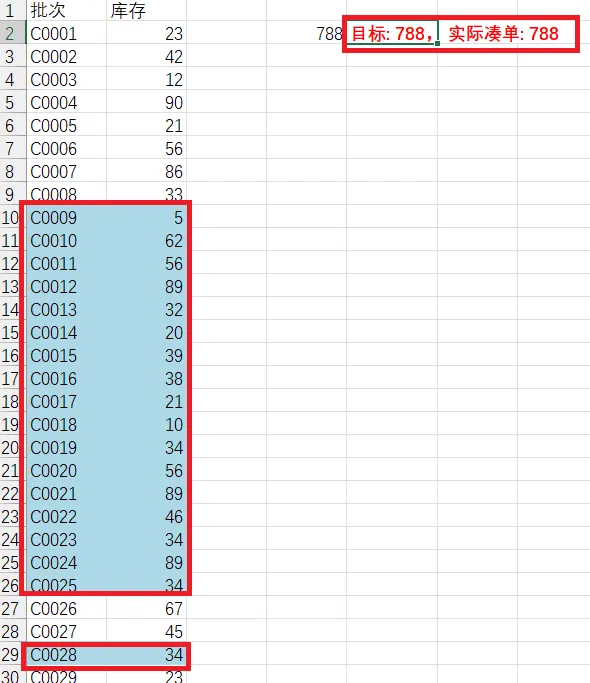
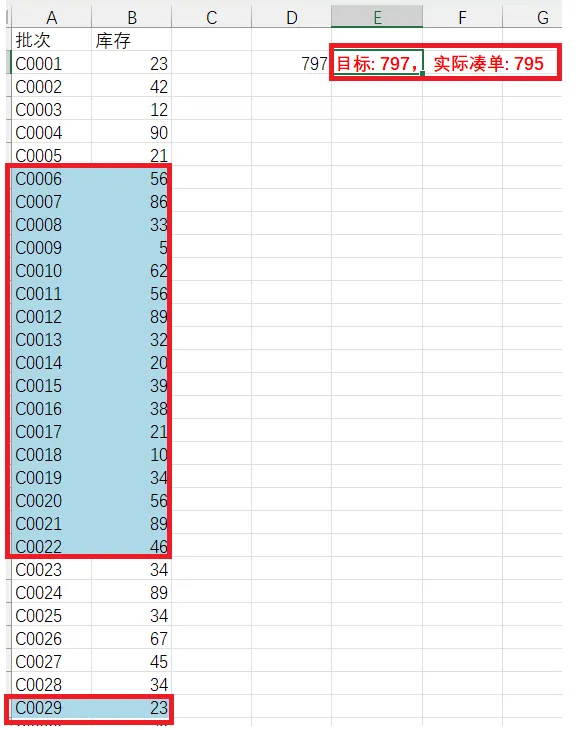
现在要求:根据D2单元格中指定的数量进行凑单,并将最优组合用蓝色底色标记出来
效果一:凑单后总数量刚好等于D2单元格中数量
效果二:凑单后总数量不等于D2单元格中数量,则选取尽可能接近(但不超过)的数量
实现代码
实现目标:根据指定的目标发货量,从库存列表中选取一个或多个批次,使它们的数量总和尽可能接近目标值,并将选中的批次在原数据表中进行可视化标记
代码参考
Sub 凑单发货() ' 定义变量 Dim TargetQty As Long Dim InventoryArr As Variant, BatchArr As Variant Dim i As Long, j As Long Dim BestSum As Long, CurrentSum As Long Dim BestDict As Object, TempDict As Object Dim wsSource As Worksheet Dim Key As Variant Dim DataRow As Long ' 设置工作表:当前活动工作表 Set wsSource = ActiveSheet ' 设置目标发货量 TargetQty = wsSource.Range("D2").Value ' 取自D2单元格的值 ' 获取批次数据(A列)和库存数据(B列) With wsSource Dim LastRow As Long LastRow = .Cells(.Rows.Count, "A").End(xlUp).Row InventoryArr = .Range("B2:B" & LastRow).Value BatchArr = .Range("A2:A" & LastRow).Value End With ' 初始化最佳字典 BestSum = 0 Set BestDict = CreateObject("Scripting.Dictionary") ' 核心算法:顺序遍历寻找最佳组合 For i = 1 To UBound(InventoryArr, 1) CurrentSum = 0 Set TempDict = CreateObject("Scripting.Dictionary") For j = i To UBound(InventoryArr, 1) If CurrentSum + InventoryArr(j, 1) <= TargetQty Then CurrentSum = CurrentSum + InventoryArr(j, 1) TempDict(BatchArr(j, 1)) = InventoryArr(j, 1) '检查是否找到更优解 (更接近目标) If CurrentSum > BestSum Then BestSum = CurrentSum BestDict.RemoveAll For Each Key In TempDict.Keys BestDict(Key) = TempDict(Key) Next Key End If ''如果恰好等于目标,则为最优解,提前退出 If CurrentSum = TargetQty Then BestSum = CurrentSum BestDict.RemoveAll For Each Key In TempDict.Keys BestDict(Key) = TempDict(Key) Next Key Exit For End If End If Next j Set TempDict = Nothing If BestSum = TargetQty Then Exit For Next i '清除可能存在的旧颜色标记 wsSource.Range("A2:B" & LastRow).Interior.Color = xlNone ' 将最佳组合中的批次所在行标记为蓝色 For DataRow = 2 To LastRow ' 数据从第2行开始 If BestDict.Exists(BatchArr(DataRow - 1, 1)) Then wsSource.Cells(DataRow, 1).Interior.Color = RGB(173, 216, 230) ' 浅蓝色 wsSource.Cells(DataRow, 2).Interior.Color = RGB(173, 216, 230) ' 浅蓝色 End If Next DataRow ' 单元格(如E2)显示汇总信息 wsSource.Range("E2").Value = "目标: " & TargetQty & ", 实际凑单: " & BestSum Set BestDict = Nothing MsgBox "凑单完成!实际发货量为:" & BestSum & "件。最佳组合已在原表中用蓝色底色标识。", vbInformationEnd Sub
操作步骤
打开Excel工作簿,另存为.xlsm
按下 Alt + F11 快捷键,打开VBA编辑器
在VBA编辑器左侧的“工程资源管理器”窗口中,右键点击你的工作簿名称,选择“插入” -> “模块”
将文中代码粘贴到新打开的模块代码窗口中
回到Excel工作表界面,顺次选择【开发工具】【宏】,选择宏名“凑单发货”执行
 10个月宝宝每天需要喝多少奶粉?

