利用VBA给EXCEL批量插入图片并大小适应单元格
- 2026-09-19 03:58:11

Hi,我是xingpeibin~👆上方蓝字关注我


先上代码:如下,在工作表上插入模块,复制代码,粘贴进去就行
Attribute VB_Name = "插入图片"
' 全局变量:存储用户选择的图片文件夹路径(解决作用域问题)
Dim g_SelectFolder As String
' 遍历指定文件夹下的文件,pstr用通配符筛选
Private Function filelist(folderspec, Optional pstr = "*")
Dim fs, f, f1, fc, i, arr
Set fs = CreateObject("Scripting.FileSystemObject")
' 验证文件夹是否存在
If Not fs.FolderExists(folderspec) Then
filelist = Empty
Exit Function
End If
Set f = fs.GetFolder(folderspec)
Set fc = f.Files
ReDim arr(1 To fc.Count)
i = 0 ' 初始化计数器
For Each f1 In fc
If f1.Name Like pstr Then
i = i + 1
arr(i) = f1.Name
End If
Next
' 处理无匹配文件的情况
If i = 0 Then
filelist = Empty
Else
ReDim Preserve arr(1 To i)
filelist = arr
End If
End Function
Sub 插入图片及图片名()
Dim direction As String
Dim nameCol As Integer ' 名称列(起始单元格对应的列)
Dim arr
Dim i As Integer
Dim targetCol As Integer ' 图片插入列
Dim fs As Object
Dim shp As Shape ' 新增:用于遍历形状
' 新增变量:存储起始单元格及行号
Dim startCell As Range
Dim startRow As Long
' ---------------------- 1. 选择图片文件夹 ----------------------
With Application.FileDialog(msoFileDialogFolderPicker)
.Title = "请选择图片所在文件夹"
.AllowMultiSelect = False
If .Show <> -1 Then ' 用户取消选择
MsgBox "未选择文件夹,操作取消!", vbInformation
Exit Sub
End If
g_SelectFolder = .SelectedItems(1)
End With
' 确保文件夹路径末尾带反斜杠(关键:避免路径拼接错误)
Set fs = CreateObject("Scripting.FileSystemObject")
g_SelectFolder = fs.GetAbsolutePathName(g_SelectFolder) & "\"
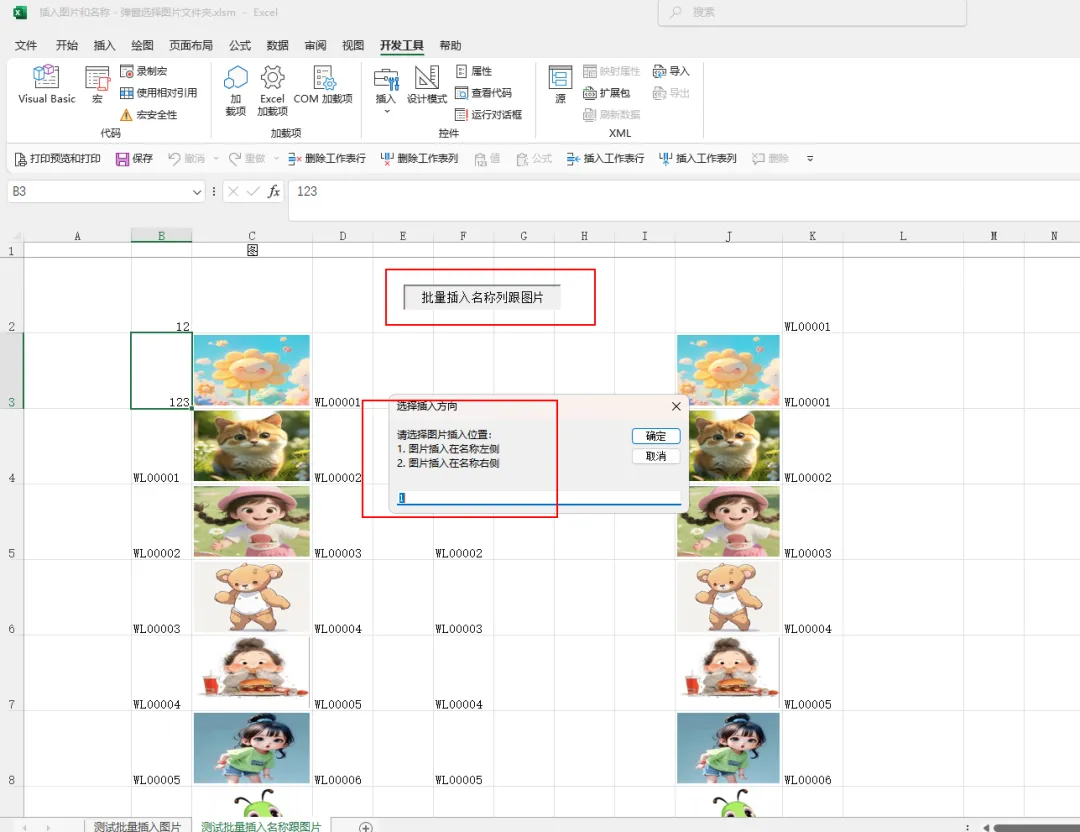
' ---------------------- 2. 选择图片插入方向 ----------------------
Do
direction = InputBox("请选择图片插入位置:" & vbCrLf & "1. 图片插入在名称左侧" & vbCrLf & "2. 图片插入在名称右侧", "选择插入方向", "1")
' 用户取消输入
If direction = "" Then
MsgBox "未选择插入方向,操作取消!", vbInformation
Exit Sub
End If
' 验证输入是否为1或2
If direction <> "1" And direction <> "2" Then
MsgBox "输入错误!请仅输入1或2", vbExclamation
End If
Loop Until direction = "1" Or direction = "2"
' ---------------------- 新增:选择起始插入单元格 ----------------------
On Error Resume Next ' 捕获用户取消选择的错误
Set startCell = Application.InputBox( _
Prompt:="请选择图片和名称的起始插入单元格(例如:B3)", _
Title:="选择起始位置", _
Type:=8) ' Type=8 表示只能选择单元格
On Error GoTo 0
' 处理用户取消选择的情况
If startCell Is Nothing Then
MsgBox "未选择起始单元格,操作取消!", vbInformation
Exit Sub
End If
' 只取第一个单元格(防止用户选择多个单元格)
Set startCell = startCell.Cells(1, 1)
startRow = startCell.Row ' 起始行号
nameCol = startCell.Column ' 起始列号(作为名称列)
' ---------------------- 4. 确定图片列(核心修改) ----------------------
If direction = "1" Then ' 图片在名称左侧:图片列=名称列-1
targetCol = nameCol - 1
' 边界校验:不能小于1(Excel最小列是A列=1)
If targetCol < 1 Then
MsgBox "无法在A列左侧插入图片!请选择其他单元格作为起始位置", vbCritical
Exit Sub
End If
Else ' 图片在名称右侧:图片列=名称列+1
targetCol = nameCol + 1
End If
' ---------------------- 5. 清空原有内容 ----------------------
' 仅删除图片类型的形状,保留按钮等控件
'For Each shp In ActiveSheet.Shapes
' If shp.Type = msoPicture Then
' shp.Delete
' End If
'Next shp
' 清空起始单元格以下的名称列和图片列内容(避免清空整列)
ActiveSheet.Range(startCell, ActiveSheet.Cells(Rows.Count, nameCol)).ClearContents
ActiveSheet.Range(ActiveSheet.Cells(startRow, targetCol), ActiveSheet.Cells(Rows.Count, targetCol)).ClearContents
' ---------------------- 6. 遍历图片文件并插入 ----------------------
arr = filelist(g_SelectFolder, "*.jpg")
' 处理无jpg文件的情况
If IsEmpty(arr) Then
MsgBox "所选文件夹中未找到jpg格式图片!", vbInformation
Exit Sub
End If
For i = 1 To UBound(arr)
' 写入图片名称(去除后缀)到【起始单元格】开始的名称列
Cells(startRow + i - 1, nameCol) = Replace(arr(i), ".jpg", "")
' 插入图片到目标列(传递名称单元格、方向、图片列)
Call 插入(Cells(startRow + i - 1, nameCol), direction, targetCol)
Next
MsgBox "图片及名称插入完成!共插入 " & UBound(arr) & " 张图片,起始位置:" & startCell.Address, vbInformation
End Sub
' 插入图片核心函数
' rg: 名称所在单元格;direction: 1=左侧/2=右侧;targetCol: 图片插入的列
Function 插入(rg As Range, direction As String, targetCol As Integer)
Dim MyFile As String
Dim picFullPath As String
Dim targetCell As Range
Dim shp As Shape
Dim fs As Object
Set fs = CreateObject("Scripting.FileSystemObject")
' 定位图片插入的目标单元格(与名称行相同,图片列)
Set targetCell = Cells(rg.Row, targetCol)
' 只删除目标单元格位置的旧图片
'For Each shp In ActiveSheet.Shapes
' If shp.Type = msoPicture And Not Intersect(shp.TopLeftCell, targetCell) Is Nothing Then
' shp.Delete
' End If
'Next shp
' 拼接图片完整路径(核心修复:用全局变量+正确分隔符)
MyFile = Trim(rg.Value) & ".jpg"
picFullPath = g_SelectFolder & MyFile
' 检查文件是否存在(兼容大小写,比如JPG/jpg)
If fs.FileExists(picFullPath) = False Then
' 尝试大写后缀(解决JPG和jpg大小写问题)
picFullPath = g_SelectFolder & Trim(rg.Value) & ".JPG"
If fs.FileExists(picFullPath) = False Then
MsgBox "图片文件不存在:" & g_SelectFolder & Trim(rg.Value) & ".jpg/JPG", vbWarning
Exit Function
End If
End If
' 插入图片(容错处理)
On Error Resume Next
Set shp = ActiveSheet.Shapes.AddPicture( _
Filename:=picFullPath, _
LinkToFile:=msoFalse, _
SaveWithDocument:=msoTrue, _
Left:=targetCell.Left + 2, _
Top:=targetCell.Top + 2, _
Width:=targetCell.Width - 4, _
Height:=targetCell.Height - 4)
On Error GoTo 0
' 让图片随单元格大小调整
If Not shp Is Nothing Then
shp.Placement = xlMoveAndSize
End If
End Function
'---------------------------------------------------------------------------------------------------------------
Function 插入2(rg As Range, direction As Integer, picFolder As String)
' 移除Volatile避免函数反复触发
' Application.Volatile
Dim MyFile As String
Dim targetCell As Range
Dim shp As Shape
Dim picFullPath As String
' 根据方向确定目标单元格
Select Case direction
Case 1 ' 左侧
Set targetCell = rg.Offset(0, -1)
Case 2 ' 右侧
Set targetCell = rg.Offset(0, 1)
Case Else
Set targetCell = rg.Offset(0, 1)
End Select
' 只删除目标单元格位置的旧图片(保留按钮)
'For Each shp In rg.Parent.Shapes ' 改为rg所在工作表,避免ActiveSheet切换问题
' If shp.Type = msoPicture And Not Intersect(shp.TopLeftCell, targetCell) Is Nothing Then
' shp.Delete
' End If
'Next shp
' 拼接图片路径(兼容Windows路径分隔符)
MyFile = Trim(rg.Value) & ".jpg"
picFullPath = picFolder & MyFile
' 检查文件是否存在
If Dir(picFullPath) = "" Then
' 可选:提示缺失的图片
' MsgBox "未找到图片:" & picFullPath, vbExclamation, "提示"
Exit Function
End If
' 插入图片容错处理
On Error Resume Next
Set shp = rg.Parent.Shapes.AddPicture( _
Filename:=picFullPath, _
LinkToFile:=msoFalse, _
SaveWithDocument:=msoTrue, _
Left:=targetCell.Left + 2, _
Top:=targetCell.Top + 2, _
Width:=targetCell.Width - 4, _
Height:=targetCell.Height - 4)
On Error GoTo 0
' 可选:如果图片插入失败,给出提示
If Err.Number <> 0 Then
MsgBox "插入图片失败:" & picFullPath, vbCritical, "错误"
Err.Clear
End If
End Function
Sub 批量插入图片()
Dim targetCol As Integer
Dim lastRow As Long
Dim i As Long
Dim inputStr As String
Dim insertDir As Integer
Dim picFolder As String ' 新增:存储用户选择的图片文件夹路径
Dim ws As Worksheet ' 新增:存储选中区域所在工作表,避免ActiveSheet切换问题
' ===== 第一步:验证选中的名称列 =====
On Error Resume Next
If TypeName(Selection) <> "Range" Then
MsgBox "请先选中名称列或其单元格!", vbExclamation, "提示"
Exit Sub
End If
Set ws = Selection.Parent ' 获取选中区域所在工作表
targetCol = Selection.Column
lastRow = ws.Cells(ws.Rows.Count, targetCol).End(xlUp).Row ' 改用指定工作表,避免ActiveSheet问题
On Error GoTo 0
If lastRow < 2 Then
MsgBox "名称列无有效数据!", vbExclamation, "提示"
Exit Sub
End If
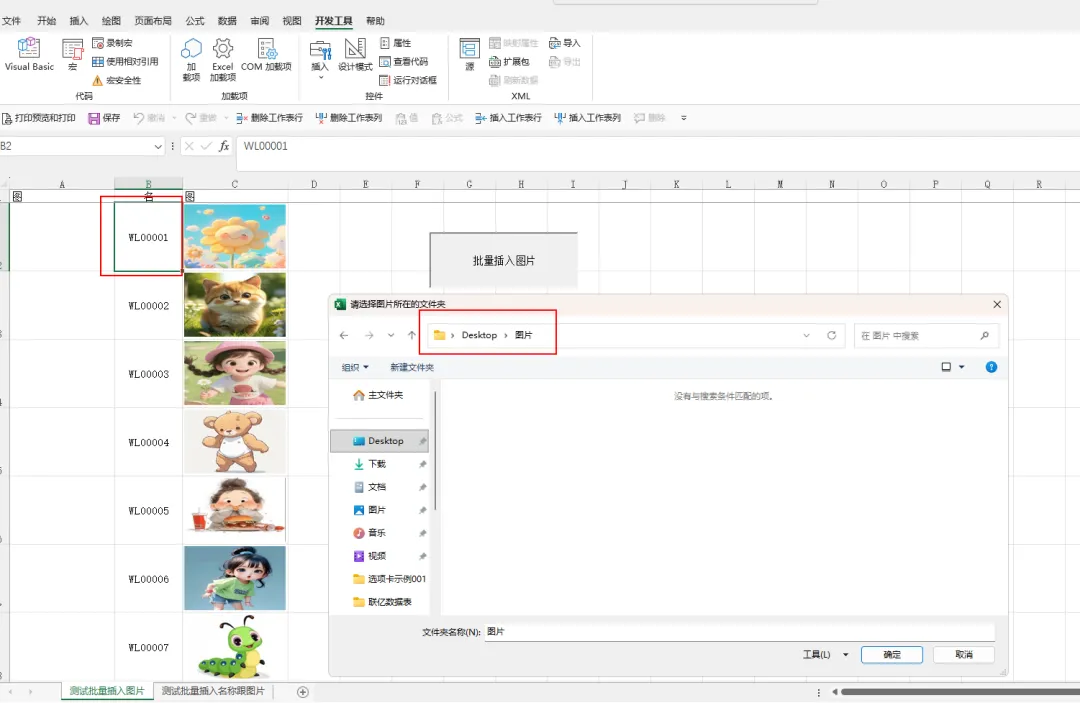
' ===== 第二步:选择图片所在文件夹(核心修改)=====
With Application.FileDialog(msoFileDialogFolderPicker)
.Title = "请选择图片所在的文件夹" ' 弹窗标题
.AllowMultiSelect = False ' 只允许选择单个文件夹
.InitialFileName = ThisWorkbook.Path ' 默认打开工作簿所在目录,提升体验
If .Show <> -1 Then ' 用户点击取消
MsgBox "未选择图片文件夹,操作取消!", vbInformation, "提示"
Exit Sub
End If
' 获取选中的文件夹路径,并确保末尾有反斜杠(Windows标准路径分隔符)
picFolder = .SelectedItems(1)
If Right(picFolder, 1) <> "\" Then
picFolder = picFolder & "\"
End If
End With
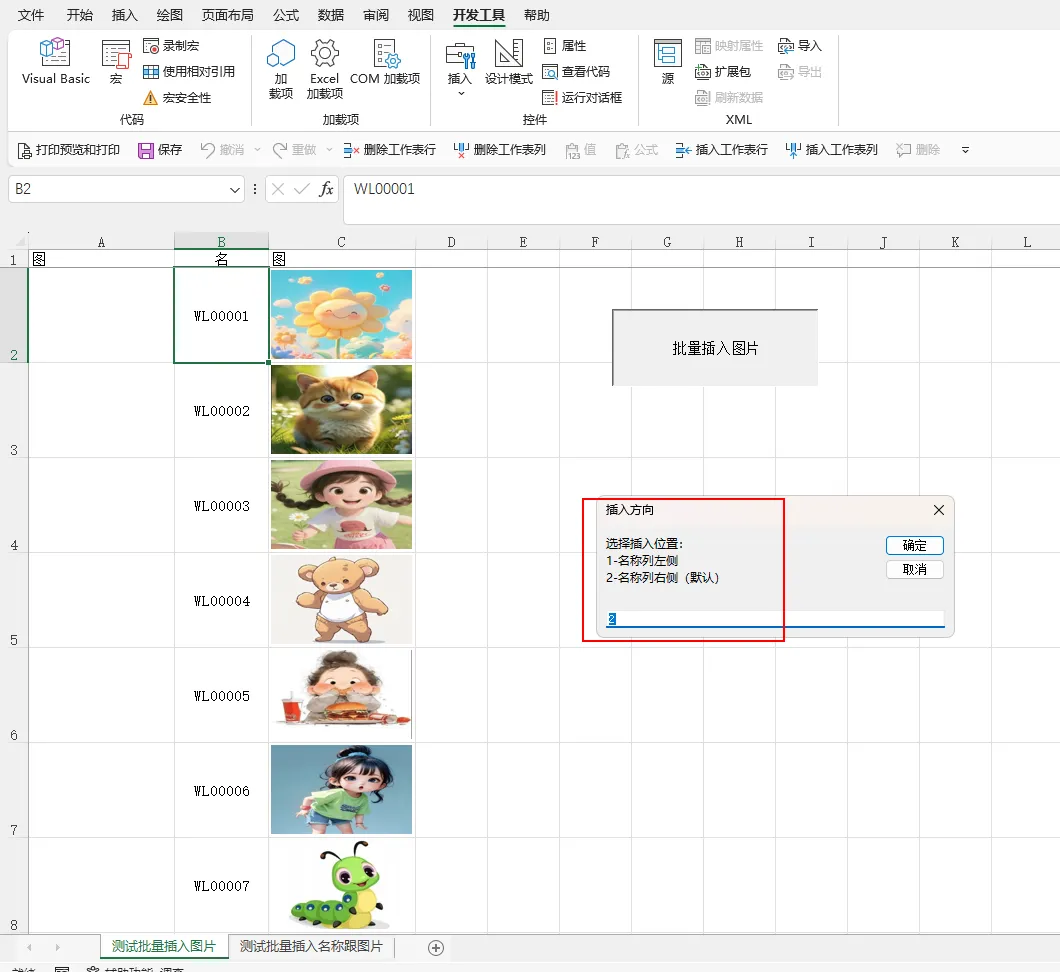
' ===== 第三步:选择插入方向 =====
inputStr = InputBox( _
Prompt:="选择插入位置:" & vbCrLf & "1-名称列左侧" & vbCrLf & "2-名称列右侧(默认)", _
Title:="插入方向", _
Default:="2")
If inputStr = "" Then
MsgBox "操作取消!", vbInformation, "提示"
Exit Sub
End If
If Not IsNumeric(inputStr) Or (CInt(inputStr) <> 1 And CInt(inputStr) <> 2) Then
MsgBox "请输入1或2!", vbExclamation, "错误"
Exit Sub
End If
insertDir = CInt(inputStr)
' ===== 第四步:删除工作表中所有旧图片(保留按钮)=====
Dim shp As Shape
For Each shp In ws.Shapes ' 改用指定工作表
If shp.Type = msoPicture Then shp.Delete
Next shp
' ===== 第五步:批量插入图片 =====
For i = 2 To lastRow
插入2 ws.Cells(i, targetCol), insertDir, picFolder ' 传递文件夹路径+指定工作表
Next i
MsgBox "图片插入完成!" & vbCrLf & _
"插入位置:" & IIf(insertDir = 1, "名称列左侧", "名称列右侧") & vbCrLf & _
"图片文件夹:" & picFolder, vbInformation, "完成"
End Sub
1.在插入跟插入2自定义函数中,控件插入前是否先删除图片对象。
' 只删除目标单元格位置的旧图片
'For Each shp In ActiveSheet.Shapes
' If shp.Type = msoPicture And Not Intersect(shp.TopLeftCell, targetCell) Is Nothing Then
' shp.Delete
' End If
'Next shp
这几行代码是控制插入图片前是否删除原先有的图片对象,如果需要自己把注释符去掉即可。
2.在插入跟插入2自定义函数中,调整插入图片在单元格中的大小。
' 插入图片(容错处理)
On Error Resume Next
Set shp = ActiveSheet.Shapes.AddPicture( _
Filename:=picFullPath, _
LinkToFile:=msoFalse, _
SaveWithDocument:=msoTrue, _
Left:=targetCell.Left + 2, _
Top:=targetCell.Top + 2, _
Width:=targetCell.Width - 4, _
Height:=targetCell.Height - 4)
On Error GoTo 0
3.LEFT,TOP,WIDTH,HEIGHT值请自己根据需要调整。个人认为2,2,-4,-4是最佳。
4.插入图片宏是根据你选择的名称列中的名称匹配所选文件夹中的同名图片插入。可以插入在名称列左边或右边
5.插入插入图片及图片名宏是可以根据选择的存放图片文件夹把所有里面的图片插入到所选的列中,也可以选择图片插入在名称左边或者右边。

希望这份排版指南对你有帮助!如果还有什么疑问,欢迎在评论区留言交流
如果觉得这篇文章有帮助,别忘了【点赞+分享+❤️推荐】哦!
关注我👇阅读更多好文

—————————————软件获取方式————————————
长按识别关注下方二维码
发送关键词:

往期好文:

