【Excel VBA 编程】条形图新创意——用图标堆叠开启视觉盛宴
- 2026-09-17 18:06:33
总是听到或看到有人问,编程好学吗?如何入门?多久能学会?它能做些什么?怎么写代码呀?执行过程中出问题了谁能帮帮我...如果你也有类似的问题那就赶快关注我的公众号,一起学起来吧!
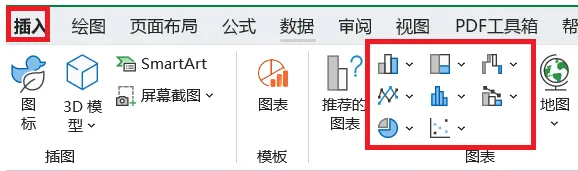

需求描述
假如我们已经在一张Excel表格中统计好了水果的销售数据。表格有两列:
A列:记录了各种水果的名称(例如:苹果、橘子......)
B列:记录了对应水果的销售数量
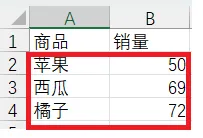
现在,希望利用这两列数据,自动生成一个条形图。这个图表需要能直观地对比出不同水果的销量高低,让人一眼就能看出哪种水果卖得最好,哪种卖得最少
这是一个非常简单的图表需求,只需要使用Excel现有的图表模版就能实现。选中A与B列数据插入一张条形图,但这并不美观也不能让我们快速聚焦核心指标数据
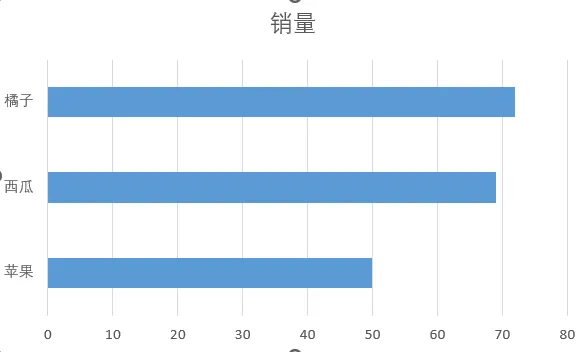
我们换个更直观的玩法:把图中这三根冷冰冰的蓝柱子,直接变成它们代表的水果图片。销量是多少,就堆多少个对应的小水果图标。比如苹果卖了50份,下面就整整齐齐码上50个小苹果。这样一眼扫过去,就像看销量排行榜,谁多谁少,是不是特别明显?

效果展示

实现步骤
执行前的准备工作:
需要为每个数据分类准备好对应的图标图片文件(如PNG、JPG格式)
为了简化代码逻辑,从E列第1行开始,按顺序填入每个分类对应图标文件的完整绝对路径。如果A2单元格是“苹果”,那么E1单元格就应该是苹果图标的完整路径,A3单元格是“西瓜”,那么E2单元格是西瓜图标的完整路径......
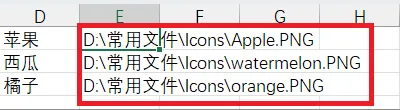
以上准备工作完成后,开始编码实现,其核心逻辑是通过读取数据并计算,在图表区域精确地按比例摆放多个小图标,从而直观地展示不同类别的数值大小,参考代码如下:
Sub HorizontalBarChartByIcons()Dim ws As WorksheetDim chartObj As ChartObjectDim dataRange As RangeDim iconPath As StringDim maxValue As DoubleDim iconWidth As Double, iconHeight As DoubleDim i As Integer, j As IntegerDim shp As ShapeDim dataValues() As DoubleDim categoryLabels() As StringDim categoryCount As Integer' 初始化设置Set ws = ThisWorkbook.Worksheets("Sheet5") '改为对应的工作表Set dataRange = ws.Range("A1").CurrentRegion ' A列为分类标签,B列为数值iconWidth = 20 ' 图标宽度(磅)iconHeight = 20 ' 图标高度(磅)' 创建基础横向条形图Set chartObj = ws.ChartObjects.Add(Left:=100, Width:=375, Top:=50, Height:=225)chartObj.Name = "IconStackedBarChart"' 读取数据并计算最大值categoryCount = dataRange.Rows.CountReDim dataValues(1 To categoryCount)ReDim categoryLabels(1 To categoryCount)maxValue = 0For i = 2 To categoryCountcategoryLabels(i) = dataRange.Cells(i, 1).ValuedataValues(i) = dataRange.Cells(i, 2).ValueIf dataValues(i) > maxValue Then maxValue = dataValues(i)Next i' 计算图表绘图区位置和大小Dim plotLeft As Double, plotTop As DoubleDim plotWidth As Double, plotHeight As DoubleWith chartObj.Chart.PlotAreaplotLeft = chartObj.Left + .LeftplotTop = chartObj.Top + .TopplotWidth = .WidthplotHeight = .HeightEnd With' 创建小图标堆叠(核心部分)Dim categorySpacing As DoubleDim barHeight As DoubleDim startLeft As Double' 计算每个分类的间距和条形高度categorySpacing = plotWidth / (categoryCount + 1)barHeight = plotHeight / categoryCount * 0.6 ' 条形高度占分类高度的60%For i = 1 To categoryCount' 计算当前分类条形起始位置startLeft = plotLeft + categorySpacing' 计算当前分类的图标数量(按比例缩放)Dim iconCount As IntegericonCount = Int(dataValues(i) / maxValue * (plotWidth - categorySpacing * 2) / iconWidth)If iconCount > 0 Then' 计算条形垂直居中位置Dim barTop As DoublebarTop = plotTop + (plotHeight / categoryCount) * (i - 0.5) - barHeight / 2' 创建图标堆叠For j = 1 To iconCountDim iconLeft As DoubleiconLeft = startLeft + (j - 1) * iconWidthiconPath = ws.Cells(i - 1, "E").Value 'E列获取小图标路径' 添加小图标形状Set shp = ws.Shapes.AddPicture( _Filename:=iconPath, _LinkToFile:=msoFalse, _SaveWithDocument:=msoTrue, _Left:=iconLeft, _Top:=barTop, _Width:=iconWidth, _Height:=iconHeight)shp.Name = "Icon_" & i & "_" & jNext j' 添加数值标签Set shp = ws.Shapes.AddTextbox(msoTextOrientationHorizontal, _startLeft + iconCount * iconWidth + 5, _barTop + iconHeight / 2 - 8, _30, 16)shp.Name = "ValueLabel_" & ishp.TextFrame.Characters.Text = Format(dataValues(i), "0") '显示格式:整数shp.TextFrame.HorizontalAlignment = xlHAlignLeft '对齐方式shp.TextFrame.VerticalAlignment = xlVAlignCentershp.TextFrame.Characters.Font.Size = 12shp.Fill.Visible = msoFalse '背景色及边框透明shp.Line.Visible = msoFalseEnd IfNext iMsgBox "条形图创建完成!", vbInformationEnd Sub
友情提醒,由于生成的图表中含有大量的图片(水果小图标),手动清理的话会很费时间,可以参考以下代码进行清理回收
Sub DeleteIcons()Dim ws As WorksheetSet ws = ThisWorkbook.Worksheets("Sheet5")' 2. 清理旧的图表和形状On Error Resume Nextws.ChartObjects.DeleteFor Each shp In ws.ShapesIf shp.Name Like "Icon_*" Then shp.DeleteNext shpOn Error GoTo 0End Sub
好了,今天的内容到此结束了,下期继续
公众号同时也在不间断地分享免费的编程案例,如果想学习更多的编程知识,无论是用来提升自动化办公效率还是想提升自我,都可以关注我的公众号,解锁更多的VBA技能

